Pages

Subscribe:
Showing posts with label Windows 8. Show all posts

50 Windows 8 tips, tricks and secrets

Tutorial: Hints and tips to help you get more from Windows 8
It's far from finished, but the Developer Preview edition of Windows 8 is already packed with important additions, from the colourful Metro interface, to a revamped Explorer, appealing desktop applets, useful system repair options, and more.
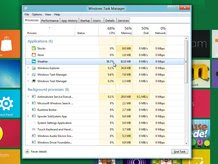
In places, though, Windows 8 is also very different to what's gone before. So if you've installed the new Windows 8 build, perhaps on a virtual machine but found yourself a little lost, don't worry - read our Windows 8 tips and tricks and you'll soon be back on track, and taking a close-up view at some of the best features Windows 8 has to offer.

Windows 8 tips: getting started

1. Lock screen

Launch Windows 8 and you'll first see the Lock screen, which appears whenever your system boots, resumes or you otherwise need to log on. If you have a touch screen, swipe up to clear it and enter your password; otherwise, drag up with the mouse, use the mouse scroll wheel, or just to tap the spacebar to clear it and move on.

Reducing runtime memory in Windows 8

Reducing runtime memory in Windows 8

Fundamentals such as memory usage represent a key engineering tenet of Windows 8. In building Windows 8 we set out to significantly reduce the overall runtime memory requirements of the core system. This is always good for everyone and especially in a world where people want to run more and more apps at the same time or run on systems with only 1 or 2GB of memory. The laptop we talk about in this post is the exact same one we talked about at the Windows 7 PDC in 2008 – an off-the-shelf, first-generation, ATOM-based netbook with 1GB of memory. This post details our efforts around memory footprint and was authored by Bill Karagounis, the group program manager of our Performance team. --Steven

The runtime memory usage of Windows 8 is an important factor in determining the Windows 8 system requirements, as well as the broadened spectrum of devices that will host Windows 8. As you know, we’re delivering the complete Windows 8 experience on SoC-based devices characterized by low power consumption. This makes it even more important to leave lots of memory available for multiple concurrent apps and to sustain the overall responsiveness of devices.

Windows 8 Uses Less Memory Than Windows 7

Windows 8 Uses Less Memory Than Windows 7


Those of you who saw Microsoft demonstrate Windows 8 at their Build conference last month will know that Windows 8 uses less RAM than Windows 7. Microsoft used a low powered netbook which had just 1GB of RAM. They booted Windows 7 SP1 and the Windows 8 Developer Preview and after they had both been at idle for a while it was found that Windows 8 was using a lot less CPU and Memory compared to Windows 7. ( 5% vs 1% and 404 MB vs 281 MB)

Windows 7 was applauded for reducing the amount of memory that Windows uses, especially compared to Windows Vista but now Microsoft have gone even further with Windows 8. One of their goals was to make sure that all machines that are capable of running Windows 7, will be able to run Windows 8 without a problem. Microsoft have managed to surpass these expectations by making Windows 8 even less resource intensive.


So how do they do it? Well Microsoft went into great detail over on the Building Windows 8 blog but I’ll try and just give you some of the main points.

Windows 8 make use of a new feature known as memory combining. Basically Windows looks at system RAM use, then it finds duplicate code that could be running for a variety of reasons, it then removes these duplicates from the memory so that you only have one copy of the code running, thus freeing up memory.